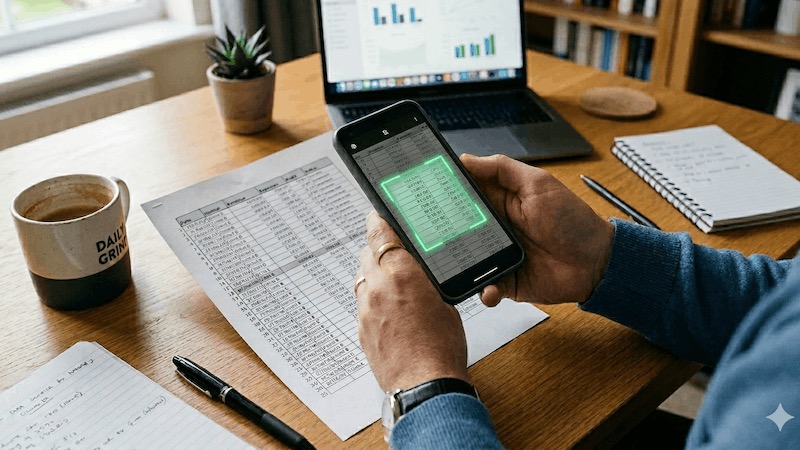
You have a printed table - maybe an invoice, a receipt, a price list, or a report - and you need it in a spreadsheet. Typing it all out manually is tedious and error-prone. With QuickScan, you can scan any paper table and convert it directly to Excel or CSV using just your iPhone or iPad.
How it works
QuickScan uses on-device table recognition to detect rows and columns in your scanned document. The extracted data is then exported as a structured spreadsheet file that you can open and edit immediately. Here's how:
- Scan your document - Point your camera at the table. QuickScan's automatic edge detection will identify and crop the document.
- Choose your export format - Select Excel (.xlsx) or CSV (.csv) as the output format.
- Export - Save the spreadsheet to your device, send it by email, or upload it directly to a cloud service like iCloud Drive, Google Drive, Dropbox, OneDrive, or any other supported destination.
The entire process takes seconds and happens entirely on your device - no data is sent to any server.
Supported export formats
| Format | Best for |
|---|---|
| Excel (.xlsx) | Opening in Microsoft Excel, Google Sheets, Apple Numbers, or any spreadsheet app. Supports formatting and multiple sheets. |
| CSV (.csv) | Universal format. Works with any spreadsheet app, database, or data processing tool. Ideal for importing data into other systems. |
What can you scan?
QuickScan's table extraction works with a wide range of printed and handwritten documents:
- Invoices and receipts - Extract line items, quantities, and prices into a spreadsheet for accounting or expense tracking
- Financial reports - Digitize printed balance sheets, income statements, or bank statements
- Price lists and catalogs - Turn printed product tables into editable spreadsheets
- Timetables and schedules - Convert printed schedules into digital format
- Lab results and data sheets - Scan scientific or medical tables for further analysis
- Any printed table - If it has rows and columns, QuickScan can extract it
Why use QuickScan for table scanning?
100% on-device processing
Unlike cloud-based solutions that upload your documents to remote servers, QuickScan processes everything locally on your iPhone or iPad. Your financial data, medical records, and business documents never leave your device. This is especially important for sensitive data like invoices, salary tables, or client information.
No internet connection required
Since all processing happens on-device, you can scan tables to Excel even when you're offline - on a plane, at a remote job site, or anywhere without Wi-Fi.
Automation
QuickScan's Export Favorites let you set up predefined workflows. For example, you can create a favorite that automatically scans a table, exports it as CSV, and uploads it to a specific folder on Google Drive or your NAS. One tap, done.
Part of a complete scanning workflow
Table extraction is just one of QuickScan's features. In the same app, you can also scan documents to searchable PDFs with OCR, sign documents, password-protect your exports, and upload to over a dozen cloud services. No need to install multiple apps.
Scan to Excel vs. retyping: a quick comparison
| Manual retyping | QuickScan | |
|---|---|---|
| Speed | Minutes to hours | Seconds |
| Accuracy | Human errors likely | Accurate OCR-based extraction |
| Privacy | N/A | 100% on-device, zero data collection |
| Cost | Your time | Free |
How to get started
- Download QuickScan for free from the App Store
- Scan the document containing your table
- Choose Excel or CSV as the export format
- Save, share, or upload your spreadsheet
That's it. No account, no subscription, no data collection. Just point, scan, and get your spreadsheet.
Continue reading: Microsoft Lens Alternative for iOS: Why QuickScan Is the Best Replacement